Showing posts with label Security. Show all posts

31 March 2011

Norton 360 v5 Complete Review


Symantec has recently released its most complete anti-virus package yet with the jam-packed Norton 360 version 5.0. We try to make it through all its features.
 
Norton 360 V5.0 includes a really long list of features, the most we’ve seen yet from a security package. In addition to the traditional threat scanning, reputation scanning is also present, examining and setting trust levels for running programs. Emails, IMs and even Facebook wall posts can also be scanned to check for malware carrying links. As we’ve seen with Norton’s Internet Security 2011, the new range of Norton products installs blazingly fast, with 360’s full installation completing in just a few minutes. Norton 360 v5.0 now features a smoother user interface (UI), divided into easy to understand categories, enabling users to access PC security, identity protection, backup and PC tuneup options with a single click.

Performance boosters

Anti-virus packages are often thought of bloated and tardy, but Norton 360 does its best to get rid of this stereotype by including a number of performance boosting features. Norton Insight for example identifies trusted files that do not require scanning. We saw this in action with 59% of our programs marked as ‘trusted’, relegating only 41% to be scanned regularly.

Features
 
Norton 360 v5.0 includes a ton of security enhancing features, such as Norton’s Download Insight technologies, helping to block malware and determining whether or not certain files are dangerous before you download them. Norton Safe Web will advise users which of their search results are safe to click, while banking and shopping can also be done without stress as Norton’s anti-phising technology keeps your login details secure. Backup options to hard drives and other local media, as well as online storage are also available, with every copy of 360 v5.0 including 2 GB of online storage. Norton also helps to keep your PC as fast as possible with a number of tuneup applications, such as Smart Startup Manager, Diagnostic Report, File Cleanup, Registry Cleanup and Disk Optimisation included.

Conclusion

With strong, discreet protection services, a wide feature list and even PC tuning software, Norton 360 v5.0 is the most comprehensive anti-virus software we’ve come across yet.
 

Prices 

Rs. 1,400 for 1 user 1 year
Rs. 2,799 for 3 users 1 year 


Let us know your experiences with Norton products in the comments below.

27 March 2011

Use Wi-Fi Hotspots Wisely


How To Protect Yourself

The ugly fact is that someone with enough skills and determination can hack into any network, and all but the most secure, private connections can be hacked by someone of average skill and enough determination. Consequently, the most important thing you can do to use Wi-Fi hotspots wisely is to lock down your data and system.

We urge you not to surf without a firewall. If you do not have firewall software installed, turn on Windows’ built-in firewall protection. Because many users have third-party firewall software, we won’t detail these instructions here. You can locate available firewall programs by browsing to windows.microsoft.com and searching under Firewall (your version of Windows).

The next step is to secure your data. Windows Vista/7 give you the option of selecting a network profile (Home, Work, or Public) when you connect. Always select Public unless you trust the network and its members. Doing this prevents other computers on the network from discovering your PC and turns off the File And Printer Sharing feature. You can tweak any of these settings in the Network And Sharing Center: right-click the network icon (a monitor or series of bars, potentially with a red X or starburst on top) at the bottom right of your display. Select Network And Sharing Center in Vista; Open Network And Sharing Center in Win7.

In WinXP, File And Printer Sharing is turned off by default unless you enabled it.To see if it is enabled, right-click the network (monitor) icon at the bottom right of your display and select Open Network Connections. Right-click the icon for your wireless device and click Properties. Under the General tab, deselect the File And Printer Sharing For Microsoft Networks checkbox to turn sharing off globally. When you return to a safe environment, you can re-enable this feature when necessary. In Vista/Win 7, you can also turn off the File And Printer Sharing feature manually through the network connection properties in Vista/Win7, but it’s easier to let Windows do it for you.
 
How To Connect
Through Windows

 
To connect to a wireless network, rightclick the network icon and select View Available Wireless Networks (WinXP) or Connect To A Network (Vista). In Win7, select the Network icon. 

A menu will pop up displaying available networks. Each OS will identify whether networks are secure. If the network you want is open, select it and click Connect. We advise not connecting to an open network unless you know it is the one you seek. Hackers set up open networks with friendly sounding names hoping that unsuspecting individuals will hop onto them.
 
If you are connecting to a secure network, or if you don’t know the name of the network you want, contact the network host. You’ll need the network name (also called an SSID) and, if the network is secure, a security key or passphrase. Select the desired network and provide the key if prompted. (See “How To Evaluate Security” before you complete this step.)

If you use WinXP, your network card may manage network connections, leaving you unable to connect using our instructions. To give Windows control, click Start, select Control Panel, click Network And Internet Connections, and select Network Connections. Right-click your wireless connection and click Properties. Click the Network Settings tab and select the Use Windows To Configure My Wireless Network Settings checkbox.

How To Set Up A Manual Connection 
If you cannot locate the network you want (some networks choose not to broadcast their SSIDs), you can set it up manually. In addition to the network, name, and credentials, you will need the network security protocol and encryption type (TKIP or AES).

To set up a manual connection in WinXP, open the available networks list as described
previously and click Advanced or Change Advanced Settings (depending on the service
pack you have installed). On the Wireless Networks tab, click Add. In Vista/Win7, open the
Network And Sharing Center. In Vista, click Set Up A Connection Or Network at the top
left of the display; in Win7, click Set Up A New Connection Or Network (under Change Your
Network Settings). Select Manually Connect To A Wireless Network and click Next.


In Vista/Win7 the Network And Sharing Center is your portal to setting up new connections, changing network profiles, and more. 
Provide the information exactly as you were given it (uppercase and lowercase). In Vista/Win7, you can opt to see the characters as you type for confirmation. If the network is WEP and you do not see this option, select Shared. Select an encryption type if you have one. Otherwise, keep
the default. After entering all this information configuring the desired settings, click OK or Next to connect.

Windows XP/Vista/7 all provide a wireless connection display that lets you determine if a network is secure or open (WinXP displayed).

How To Evaluate Security
 
Most private, and also some public, networks use one of several security standards to protect users and themselves from intrusion. You’ll encounter WEP, WPA, and possibly WPA2. The Wireless Network Connection dialog box may provide the network type. If not, here’s a hint. WEP security keys always contain 26 characters. WPA and WPA2 security keys are eight to 63 characters in length.


WinXP does not offer network profiles, but you can turn off File And Printer sharing through network connection properties.

WEP is the least secure and easiest to crack; treat a WEP network as you would an unsecure network, setting its profile to Public unless you absolutely must communicate with other PCs.
WPA and WPA2 are more impervious to cracking, so you can use a profile that is more open,
such as Work, if necessary (or tweak the settings in the Public profile to open things up as needed.)
 
Take Charge
 
At the end of the day, the responsibility for protecting your assets lies with you. Using
common Internet precautions is also a good idea. Before you provide sensitive information, be
sure you are at a secure site. The Web address should begin with https instead of http and your
browser should display a padlock icon or other security confirmation. Check with your email
provider to see if you can encrypt your email messages. Another precaution you can take is to
turn off your wireless adapter when you are not using the Internet. To turn wireless off, rightclick
the icon for your wireless connection in the System Tray and select Disable.

13 March 2011

Insight to DOS and DDoS Attacks


For many companies like Google, Twitter or WikiLeaks, the corporate Web site is one of the primary tools for getting business done. That means that if the Web site goes down from a DoS (Denial of Service) or DDoS (Distributed DoS) attack, you’re losing sales—no matter whether your Web site is used for customers to check out products or a way for clients to access services. And if your company is large enough that the Web or application server is hosted on the premises, a DoS attack could block internal Web access and email, which could hamper sales even further. To help you understand and avoid such effects, we’ll explain what DoS attacks are and what you can do to avoid them.
 
What Is A DoS Attack?
 
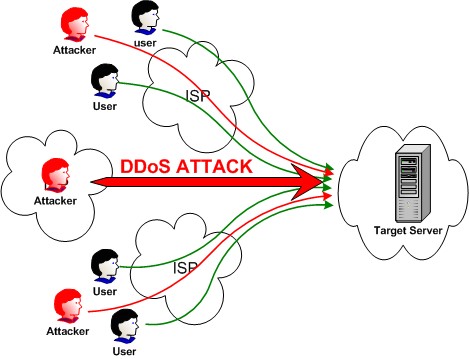
According to Lori MacVittie, senior technical marketing manager at F5 Networks, “Both DoS and DDoS attacks are designed to disrupt a service, such as a Web application, Web site, etc. Basically, the at- tackers are trying to keep either the service itself or a component in the path—over which traffic to and from the service must travel—so busy that legitimate users cannot access the service reliably.” The primary difference between the two types is that a DDoS attack comes from more than one source, while a DoS attack is launched by a single source.
 
With a DDoS assault, a hacker will plant malicious code into possibly hundreds or thousands of computers to give them the ability to control the group of PCs. The group of remotely controlled computers is called a botnet, and some or all of the PCs can be used in a DDoS attack to simultaneously hit your organization’s Web site from many sources. There are a lot of ways for hackers to perform a dis- ruptive attack on your organization. MacVittie says “the core principal behind any DoS or DDoS attack is the consumption of resources, such as network bandwidth, RAM, or CPU.”

There are two main types of attack. In one, the h@cker will attempt to overflow the Web site with traffic to prevent access to legitimate visitors or slow services to a point where the Web site seems to crawl along. Another version of the “flood” method, which has increased in popularity recently, are attacks where the server’s RAM and processor are used up so that there are no more re- sources left for legitimate requests. The second type of attack is where the hacker will attempt to crash a component in the network or application, such as a router, a Web server, or a database.

DoS Issues

“Organizations that depend on revenue generated via the Internet can suffer monetary loss when legitimate customers are denied access to the site. Loss of availability can negatively impact the reputation of the organization if customers are unable to communicate with customer service representatives,” says MacVittie. Another key concern is the cost to patch, upgrade, or address the vulnerabilities in your network. For example, let’s say that your organization uses digital phone services, which re- quire extra bandwidth to make voice calls, and a DDoS attack begins congesting your network. Your business likely can be without email or voice communication for days on end, so you’ll need to pay to address the problems with the hardware right away.

Why Me?

MacVittie explains, “Generally speaking, these types of attacks are ‘punitive’ in that an organization or government experiencing an attack is being targeted with the motive being revenge for some action that negatively impacted the attacker.” Thus, the best advice is to not anger anyone who might launch DoS or DDoS attacks. For example, a recent DoS attack against PayPal ensued after PayPal blocked donation services to the whistleblower Website WikiLeaks. The belief is that the pro-WikiLeaks group Operation Payback attacked PayPal because they felt they were impeding WikiLeaks activities. Similar “hacktivist” activities hit MasterCard’s and Visa’s Web sites. The lesson is that controversial situations can stir up attackers.

Protection
 
“There are many strategies for preventing a negative impact from a DDoS, but it’s important to note that there is no way to prevent a DoS/ DDoS from happening, because such attacks are completely under the control of a third party (the attacker). There is no way for an organization to stop miscreants from launching such an attack,” says MacVittie. Thus, your focus should be on keeping negative consequences, such as an inaccessible Web site or online application, from affecting your business.
 
F5 Networks recommends that every network component in the organization’s infrastructure have some form of DDoS protection, which means that it has a built-in ability to recognize a DDoS attack and stop it from affecting the quality of your online ser- vices and applications. For example, F5 Networks’ BIG-IP platform is capable of handling tens of thou- sands of connections per second, so it would take a tremendous attack to affect your Web site, assuming sufficient server resources are available. “It also behooves organizations to discuss with their Internet service provider what means they have in place to assist, should an attack occur,” says MacVittie.

“Organizations that depend on revenue generated via the Internet can suffer monetary loss when legitimate customers are denied access to the site,”

There are a number of free and open-source DoS solutions available, but you’ll need an IT staff that has the knowledge and time to deploy and properly implement the protection. If your company doesn’t have the skills or architecture to deploy the DoS protection, a support network from a service provider may be a better, more cost-efficient way to go. “The biggest problem for companies with limited budgets will be that modern DDoS attacks are moving up the stack; in other words they are targeting the application layers as well as network layers,” says MacVittie. Most free or affordable options are not capable of detecting, nor preventing, the impact of an application layer attack.
 
Smaller organizations will also want to ensure they are sufficiently protected against malware and viruses, because the internal computers may be used to participate in a DDoS attack and also consume all your network resources, which will effectively also be a DDoS attack on your company. Whether your company is big, medium, or small, it’s a good idea to talk with your IT staff about what protections you have in place for DoS and DDoS attacks.